
Migrate from Breathe HR to HR Planner
Use a named Breathe migration connection with preparation and final-move modes to organise the transfer of supported data into HR Planner.
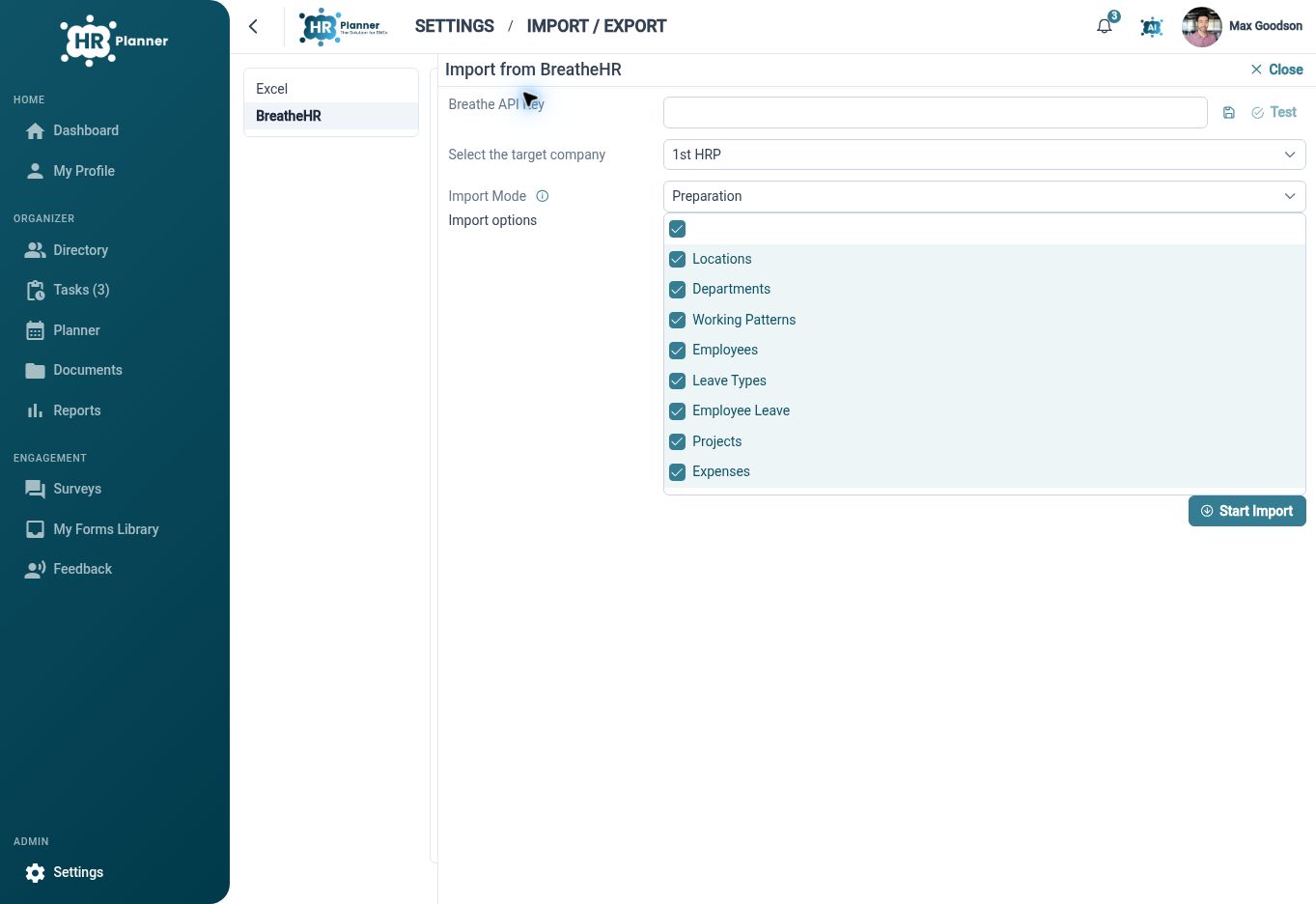
Prepare your connection
Set up and test the Breathe HR migration connection before choosing what to move into HR Planner.
A provider-specific connection gives the migration a defined starting point. HR Planner includes a Breathe HR connection setup with test and status handling, separate from the individual import runs. Preparing the connection first helps establish whether the selected account and configuration are ready for the next stage.
For example, agree which company is being moved and have an authorised administrator configure the required access. Test the connection and review any returned status before starting an import. Keep credentials out of screenshots and migration notes, and use a small agreed demonstration to confirm how your setup behaves.
Choose the move’s scope
Select the supported data areas for a company-scoped preparation or final-move import, based on the records your migration needs.
The connector exposes selectable migration domains, including organisation structure, working patterns, employees and leave-related information. Preparation and final-move modes provide distinct stages for planning the transfer. The exact fields, attachments and supported record behaviour should be confirmed against your source data before the final move is agreed.
For example, begin by identifying the employee and leave information your team needs in HR Planner. Review the available selections and demonstrate the relevant domains with sample records. Use the preparation stage to check the destination rather than assuming every field in the source system will transfer in the same way.
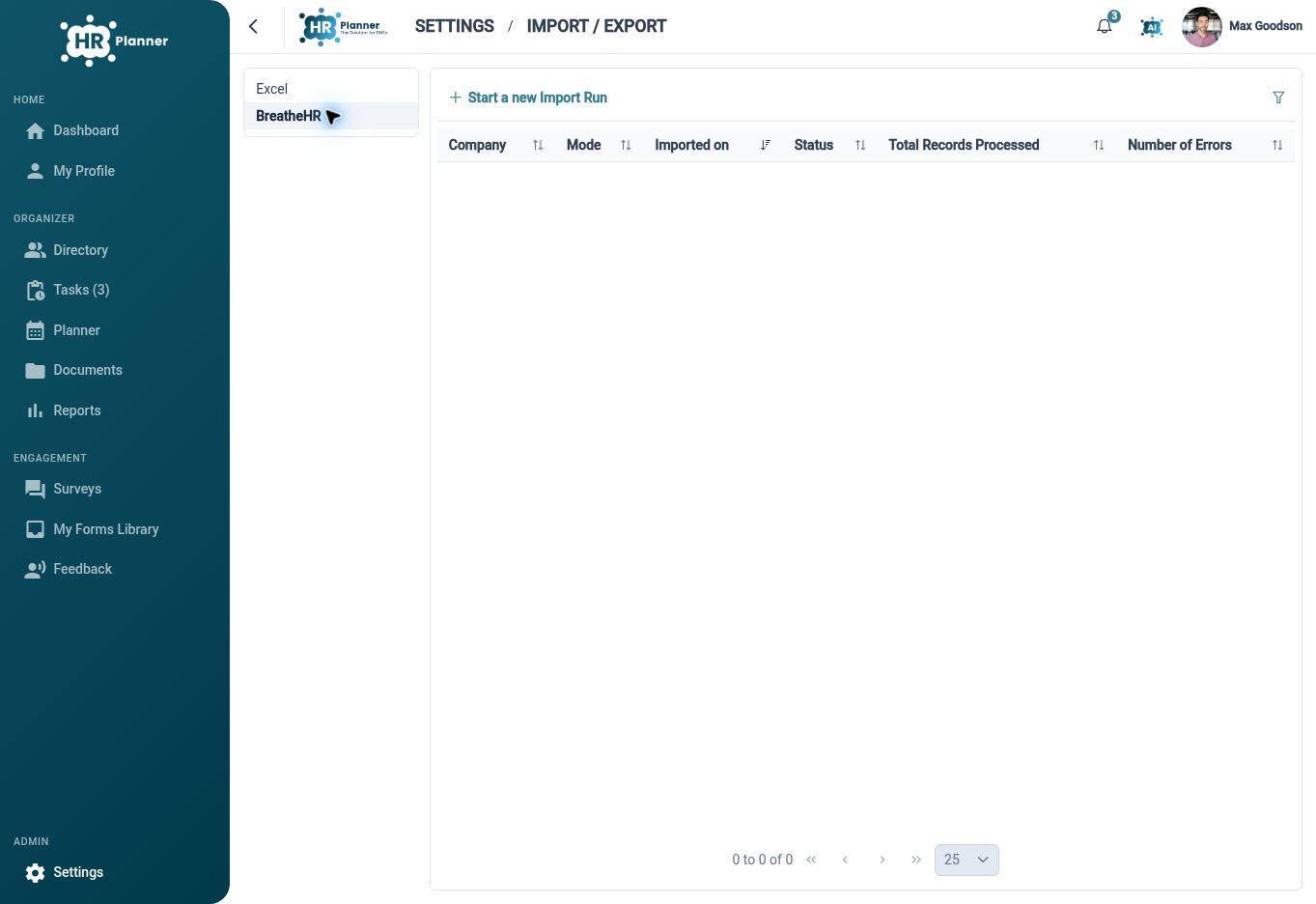
Review the result
Use import progress and history to inspect processed records, errors and partial outcomes, then reconcile the destination before completing the move.
Migration needs an outcome check as well as an import action. HR Planner’s import views expose progress, entity stages and processed or errored record counts, with success, partial and failure states. These help the administrator identify where closer review is needed and keep a record of the import run.
For example, compare a representative set of employee records and leave entries in the destination after a preparation run. Investigate errors and agree how they will be resolved before the final move. Use the connector as a migration process; an ongoing two-way synchronisation arrangement is outside the scope described here.
Built for everyday HR

A defined migration route
Use the named Breathe connection and import process to prepare a move into HR Planner.

Agreed data scope
Choose supported domains and verify the fields your organisation needs before the final transfer.
Visible import outcomes
Review progress, errors and destination records as part of migration reconciliation.
Explore connected HR features
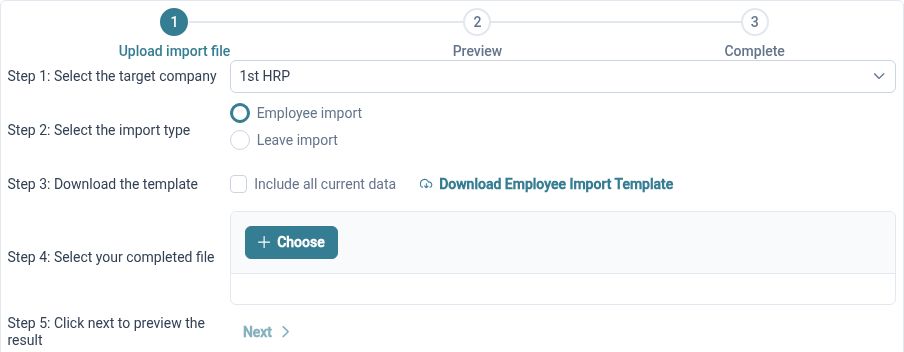
Import Employee Records from Excel
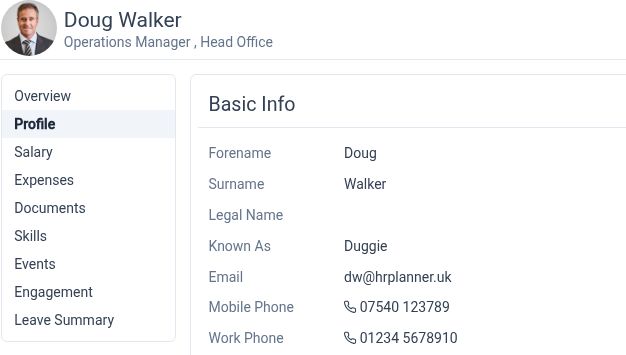
Employee Records Software
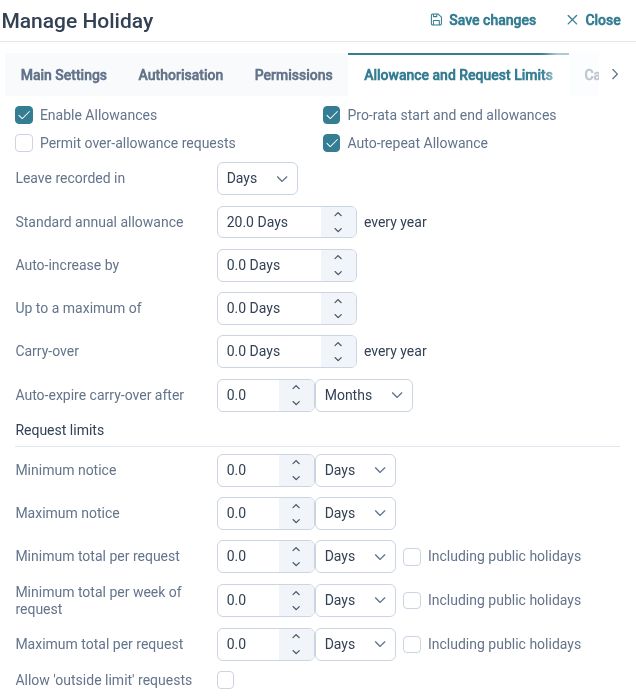
Leave and Absence Management Software

Ready to take our software for a spin?
Organisations just like yours are using HR Planner. Start your free trial today to see how simple it can be!