
Import Employee Records from Excel
Use an Excel template, validate and correct employee data in preview, then save the import with configurable employee fields in context.
Start with the template
Download an employee import workbook suited to HR Planner’s fields, giving your migration a structured starting point.
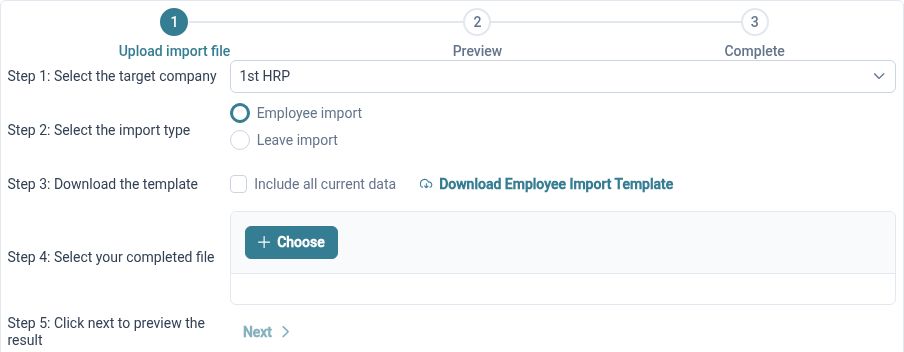
Moving employee information is easier when the destination structure is clear. HR Planner provides an Excel template, with the option to include existing information where supported. Configurable employee attributes are part of the import approach, so preparing the record structure before completing the workbook helps keep the migration focused.
For example, start by deciding which employee fields and custom sections you intend to use. Download the template, then map your existing spreadsheet information into the appropriate columns. Work with a small fictional or approved test set first so the team can understand the format before preparing the wider employee list.
Check before saving
Upload the workbook and review the import preview, correcting validation issues before the employee data is saved.
A successful file upload is not the same as a successful data migration. HR Planner’s employee import includes a preview and correction process, with checks such as duplicate usernames and manager references. Reviewing those messages gives the administrator a chance to address record-level issues before completing the import.
For example, a manager reference in an employee row may not match the prepared employee data, or a username may already be in use. Resolve the issue in the preview or source workbook as appropriate, then review the resulting records again. This makes validation a visible part of the move rather than an afterthought.
Include leave records
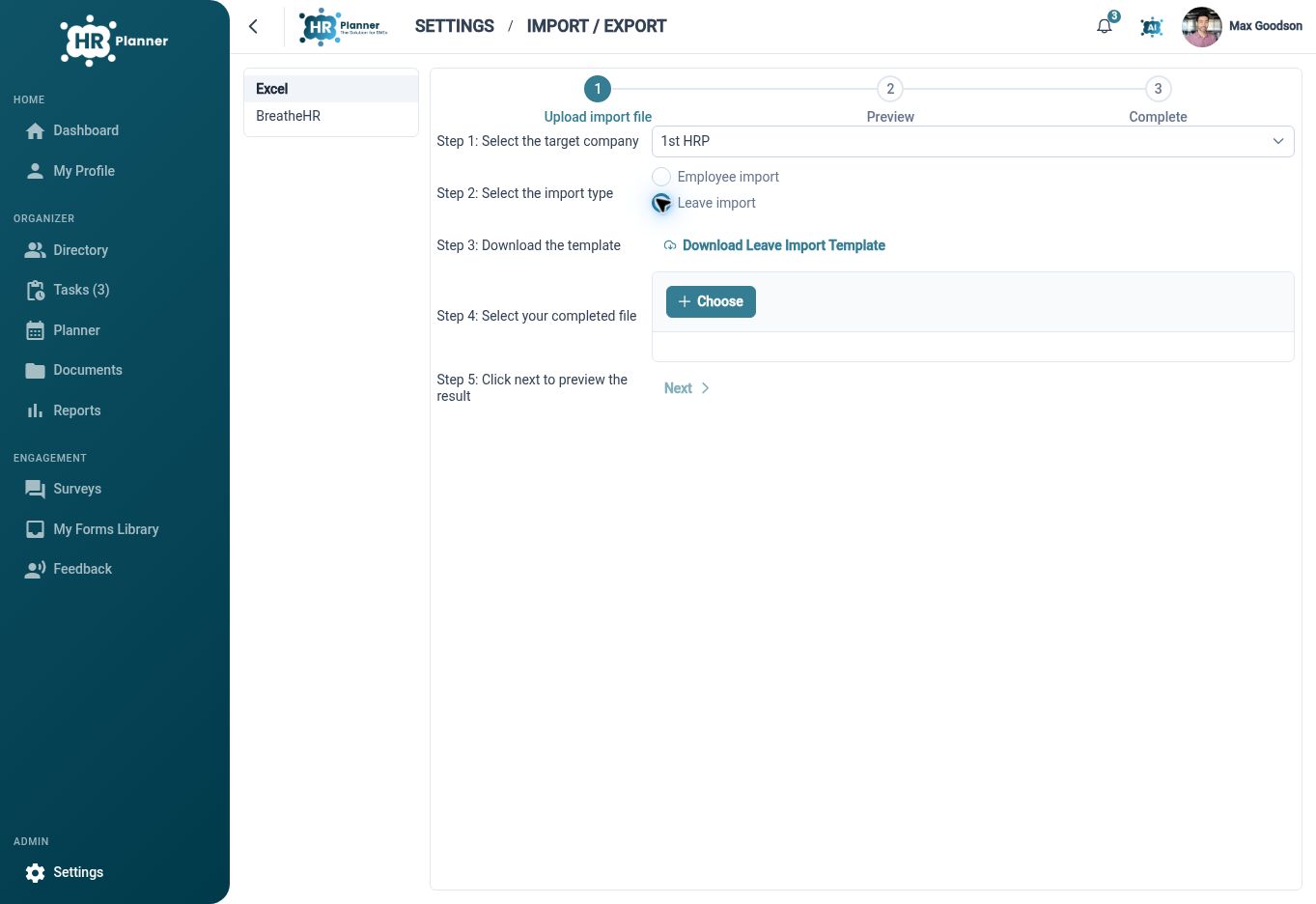
Use the separate leave import workflow when moving leave records, with employee matching and leave-cost validation included in the review.
Employee details and leave history need their own preparation. HR Planner provides leave templates and previews, with validation for employee matching and recalculated leave costs before saving. Relevant employees, leave settings and working patterns should be prepared so the imported requests have a meaningful destination context.
For example, after reviewing the employee import, prepare the supported leave data for those employees and inspect the leave preview. Investigate unknown-employee messages or unexpected costs before proceeding. Plan welcome-email choices and employee access around the reviewed migration so colleagues are introduced to the workspace at the appropriate point.
Built for everyday HR
A structured starting point
Use an import template that reflects the employee information you intend to maintain.

Reviewable migration steps
Inspect and correct the preview before saving employee records.

Connected leave preparation
Plan employee and leave imports together while checking each workflow separately.
Explore connected HR features
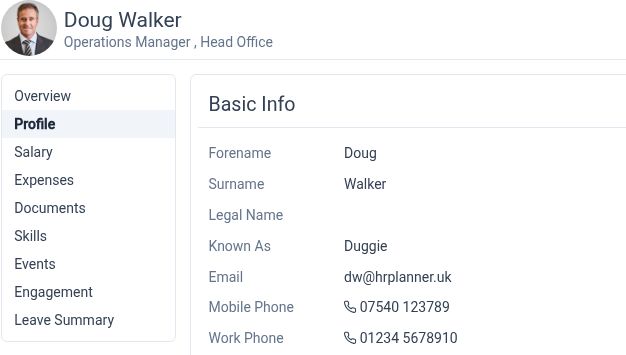
Employee Records Software
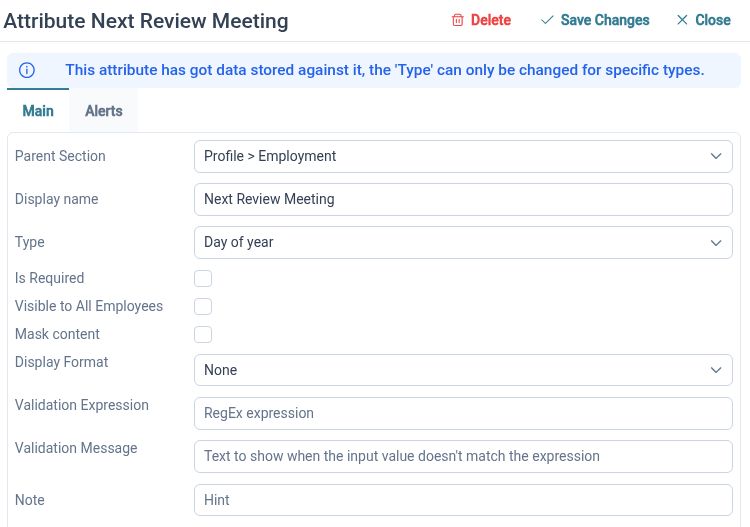
Custom HR Fields and Employee Records
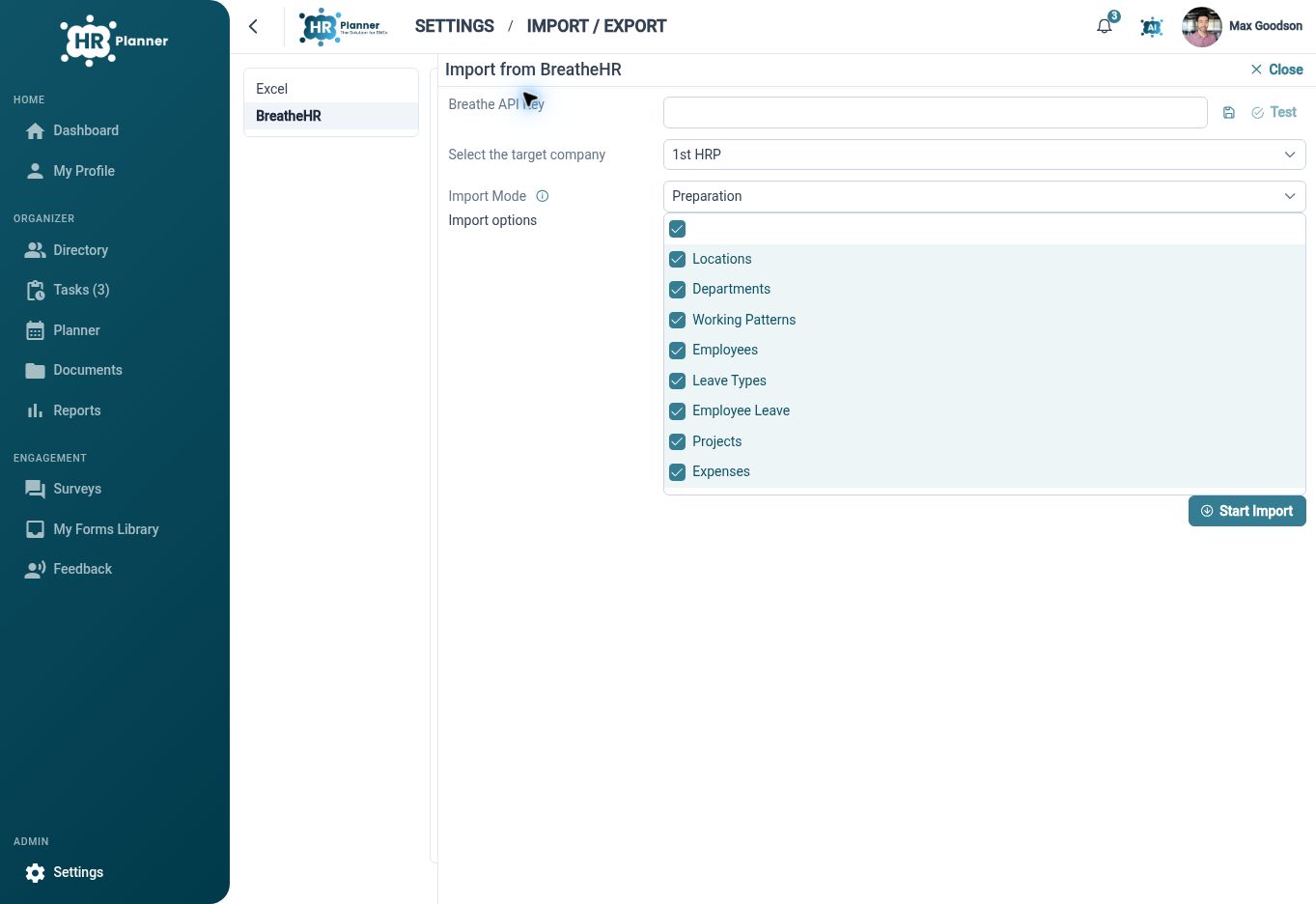
Migrate from Breathe HR to HR Planner

Ready to take our software for a spin?
Organisations just like yours are using HR Planner. Start your free trial today to see how simple it can be!